Upload Your First File
Upload Your First File
Get your audio or video into Narralyn in 3 easy steps.
Supported File Formats
Narralyn accepts a wide range of formats:
Audio Files:
- MP3
- WAV
- M4A
- FLAC
Video Files:
- MP4
- MOV
- MKV
- AVI
File Limits:
- Maximum size: 500MB per file
- Maximum duration: 20 minutes
Step 1: Access the Editor
Click the "Get Started" button on the Narralyn homepage or navigate directly to app.narralyn.com.
If you're not logged in, you'll be prompted to sign in with your Google account.

Step 2: Upload Your File
- You can upload a file by clicking on the "New Project" button in the bottom right corner
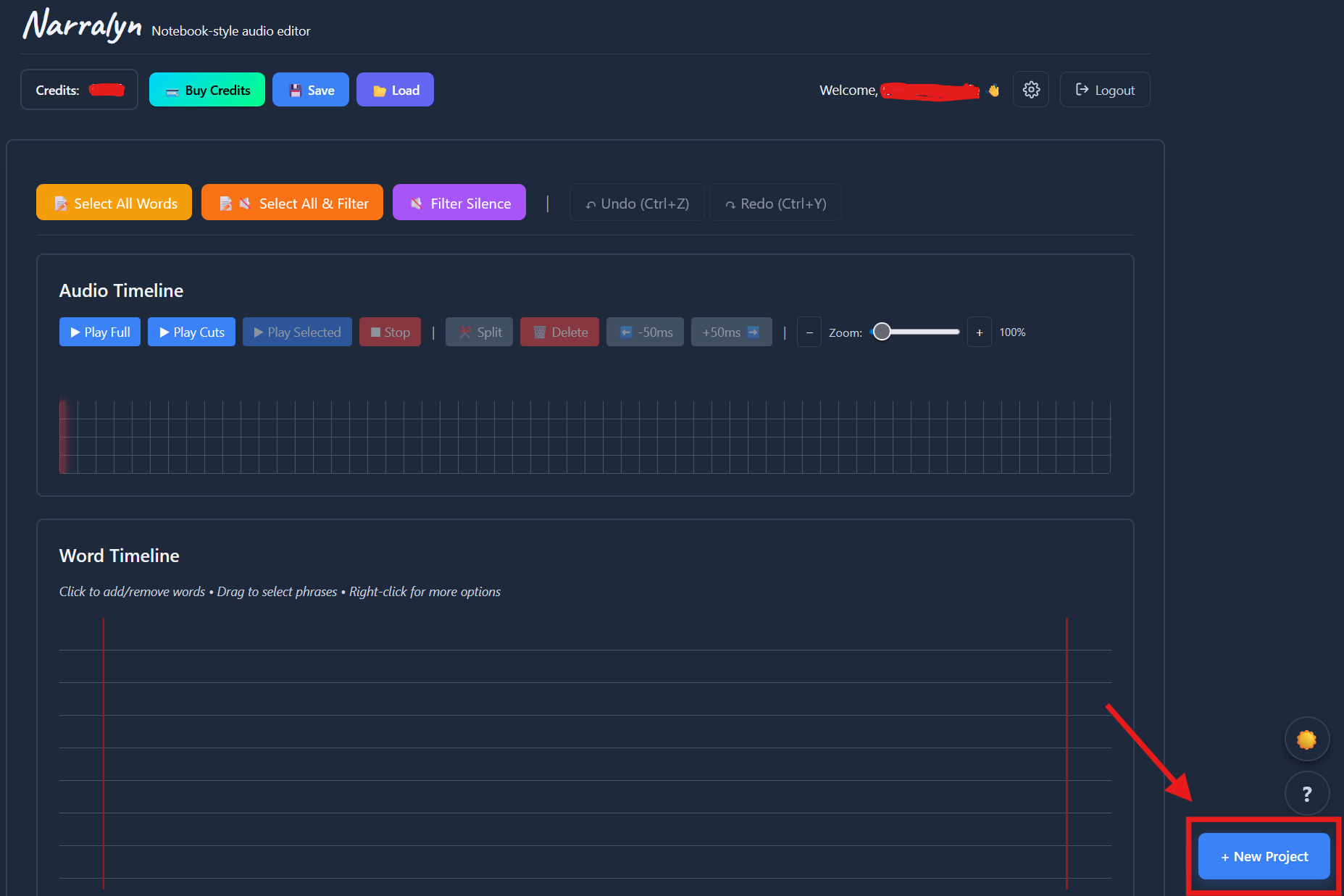
- This will open a pop-up named "Add File"

- Click on it to open the file browser, where you choose your audio / video file
- The audio file is displayed on the bottom of the "Add File" pop-up. Click proceed to continue

Pro tip: You can export the audio from a video at this step, by clicking the button "Download Audio", or remove the file from processing by clicking the "X" button

Step 3: Wait for Processing
Once uploaded, your file goes through three stages:
Upload (usually instant for files under 100MB)
- Progress bar shows upload status
AI Transcription
- Takes up to 2 minutes, depending on file size
- Powered by an AI with industry-leading accuracy
Loading Audio
- Ensures your file plays smoothly while you work on it
What Happens Next?
Once transcription completes, you'll see:
- ✅ Full transcript of your audio
- ✅ Word-level editing interface
- ✅ Audio timeline and waveform
- ✅ Your first project created automatically
You're now ready to start editing!
Pro tip: You can work offline from this point. Make sure to use the "Load" and "Save" buttons or enable "Autosave" in the settings button (top right corner), so that you don't lose any progress.

Common Questions
Q: My file won't upload? A: Check that:
- File size is under 500MB
- File format is supported (see list above)
- You have a stable internet connection
Q: Upload stuck at 20%? A: This usually means audio extraction is in progress. Wait 1-2 minutes.
Q: How long does transcription take? A: Typically 1-2 minutes. Longer for:
- Files over 15 minutes
- High server load (rare)
Q: Can I upload multiple files? A: Yes! You can upload files individually. Each file is treated as its own project.
Next Steps
👉 Understanding Credits - Learn how Narralyn's pricing works
👉 Understanding the Editing UI - Once your file is processed, learn how to navigate the editor
Need help? Contact support at micael@invisiblepuzzle.com.